Smart Order Concept
BlitzTrader offers unique features and mechanisms to streamline your trading execution logic effortlessly. In addition to supporting a native order API, which typically demands meticulous effort to code complex execution logic, it provides a highly potent and advanced concept for managing execution logic without delving into the intricacies of native order API state management. This enables traders to execute trades with greater ease and efficiency, freeing them from the burdensome task of handling intricate order API states. One of the standout features is the SmartOrder, which ensures that order cycles never go into wrong loops and precisely manages multiple order cycles in a controlled manner according to your trading execution logic.
It is always recommended to utilize the SmartOrder or SmartOrderEx Command over a native API. In this section, we will delve into the SmartOrder Command concept.
The SmartOrder Command mechanism is meticulously crafted to monitor the order state from its inception as a new order until it arrives at its terminal state, which could involve being completely filled, rejected, or canceled. Throughout this journey, the order may undergo multiple modification states. This robust mechanism is instrumental in streamlining the management of order states, guaranteeing efficient handling from initiation to terminal state of order.
Similar to IVInfo, the SmartOrder Command is also bound to IVObject. However, unlike IVInfo, you can create multiple SmartOrder commands associated with IVObject. Each SmartOrder command operates independently, managing the order lifecycle autonomously. This provides strategy developers with the flexibility to define SmartOrders according to their unique design of strategy logic, enabling tailored order management strategies to be implemented effectively.
To declare the SmartOrder commands, you would need to define them as follows:
private QX.Blitz.Core.IOrderCommand _entryOrderCommand = null;
private QX.Blitz.Core.IOrderCommand _exitOrderCommand = null;
These commands should then be mapped with the Strategy-defined IVObject in the OnInitialize method using the API GetSmartOrderCommand calls:
protected override void OnInitialize()
{
            _ivInfo = base.GetIVInfo(_ivObject);
            _entryOrderCommand = base.GetSmartOrderCommand("Entry", TimeInForce.GFD, _ivObject);
            _exitOrderCommand = base.GetSmartOrderCommand("Exit", TimeInForce.GFD, _ivObject);
            TraceLogInfo("Strategy Initialize Successfully");
}
The GetSmartOrderCommand API takes the following inputs: a unique identifier name, a TimeInForce value (e.g., GoodForDay, IOC etc), and the IVObject handle on which it will perform the order routing mechanism of associated market. It's important to note that no two SmartOrder command handles should have the same identifier name.
Once IOrderCommand is initialized, it is ready to manage the order life cycle.
GetSmartOrderCommand takes unique name identifier, order TimeInForce attribute and reference to your Instrument Variable to return the Smart Order Command. Following is important functions used to control the order routing behavior
For instance, let's assume the strategy decides at any point to send an order using the _entryOrderCommand. The order management can be easily controlled using the Set method of IOrderCommand, as demonstrated below:
protected override void OnMarketDataEvent(StrategyMarketDataEventArgs strategyMarketDataEventArgs)
{
    // Below logic is quoting logic using smart order
    // which keep quoting at Best Buyer side and
    // avoiding itself to become best of own order

    OrderSide entrySide= OrderSide.Buy;

    // Identify quoting price
    if (_entryOrderCommand.CurrentOrder == null)
        entryOrderPrice = _ivInfo.MarketDataContainer.GetBestBiddingPrice(entrySide);
    else if (entrySide == OrderSide.Sell)
        entryOrderPrice = _ivInfo.MarketDataContainer.GetBestBiddingPrice(_entryOrderCommand.CurrentOrder);

    _entryOrderCommand.Set(
        true, entrySide, OrderType.Limit, Input_OrderLotQty * _entryOrderCommand.IVInfo.LotSize, entryOrderPrice, 0);
}
- The first parameter (True) indicates that the order must proceed. If the order is already placed and open, it will modify the order with the new changed price. If set as False, all other parameters are irrelevant, and the order cancellation request is immediately initiated if the order is still in the open state.
- The second parameter denotes the OrderSide, which can be OrderSide.Buy or OrderSide.Sell.
- The third parameter represents the OrderType, which in this example is a LimitOrder.
- The fourth parameter indicates the OrderQuantity.
- The fifth parameter specifies the Order Limit Price.
- The sixth parameter represents the Stop Order Price. This value is valid only if the OrderType is StopLimit.
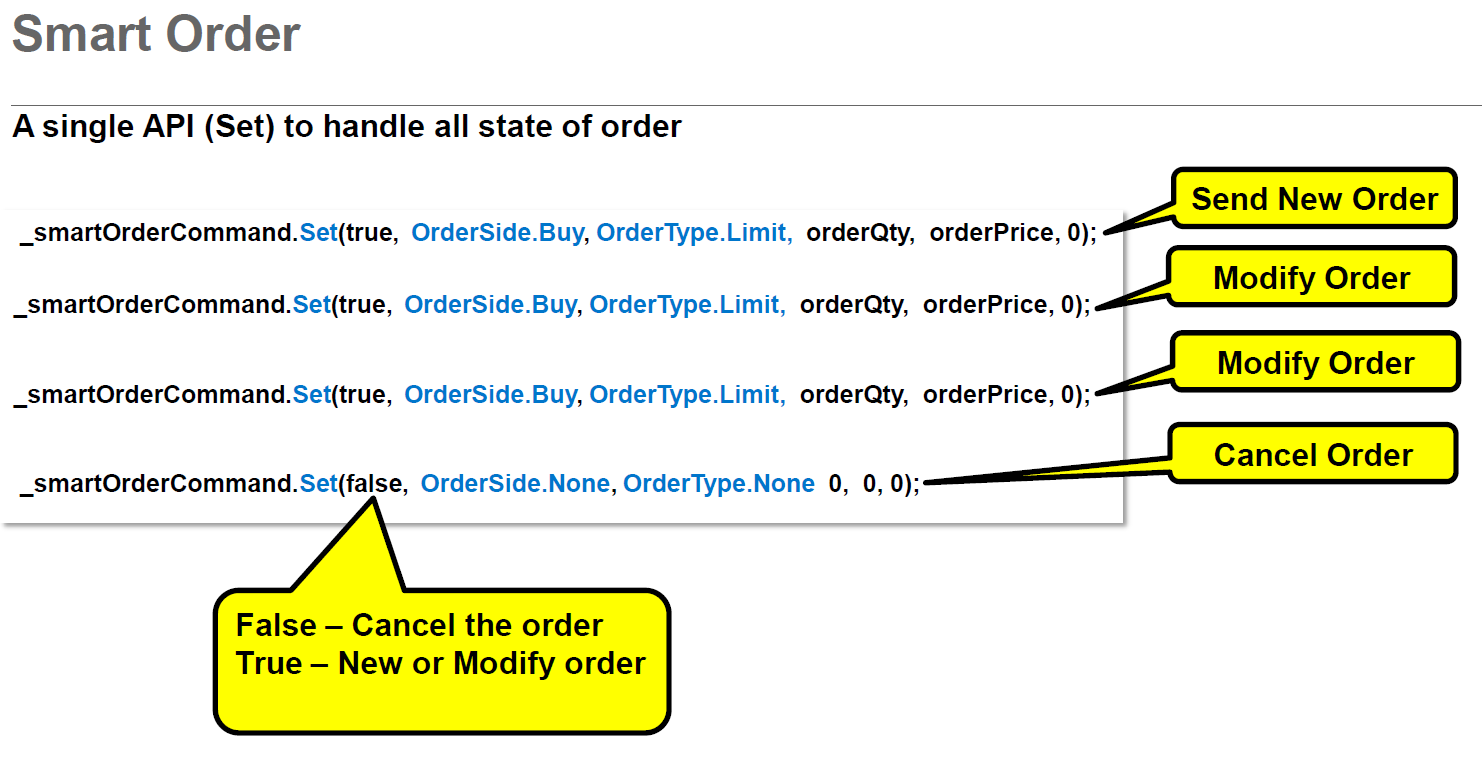
As we delve into the functionality of the Set method, it becomes apparent that it plays a crucial role in managing the entire lifecycle of an order, from initiating a fresh order to modifying its state, such as adjusting the order price, until it reaches its terminal state.
When a SmartOrder reaches a terminal state, such as Completely Filled, it transitions into a passive state while retaining vital information pertaining to the order cycle. This information encompasses essential details like ClientOrderID, ExchangeOrderID, Order Status, Execution Status, Cumulative filled Quantity, Leaves Quantity, Average Filled Price, among others. Leveraging this information, the strategy logic can effectively determine the subsequent steps in the order execution process.
To prepare the SmartOrder for the next order cycle post reaching a terminal state, the Reset method comes into play. However, it's imperative to exercise caution and trigger the Reset method based on stringent risk check conditions established by the Strategy.
It's essential to note that an IOrderCommand only facilitates one order cycle at a time. In scenarios where multiple order cycles are required for the same instrument, it's recommended to define and initialize multiple IOrderCommand variables, each mapped to an IVObject, and utilize them accordingly.
As highlighted, if an OrderCommand transitions to a passive state with the Order Status indicating one of the terminal states, any subsequent calls to the Set method on the passive state will be disregarded. To ready the OrderCommand for the next order cycle, the Reset method must be employed. It's crucial to remember that the Reset method can only be applied to a passive OrderCommand, and it will fail if the Order state remains open as per Blitz OMS regulations.
In summary, the Reset method serves as a pivotal tool to prepare the OrderCommand for subsequent order cycles, ensuring a seamless and efficient trading experience on BlitzTrader's platform.
Use Reset method to make OrderCommand ready for next order cycle.
string errorString = string.Empty;
 if (!_entryOrderCommand.Reset(out errorString))
     base.TraceLogError("Smart Order Resetting Failed. Reason : " + errorString);
if (_entryOrderCommand.TotalTradedQuantity > 0 &&
_entryOrderCommand.TotalTradedQuantity == _exitOrderCommand.TotalTradedQuantity)
{
    CompletedRounds++;
    base.TraceLogInfo("Transaction Completed.");
    Empty;

    if (!_entryOrderCommand.Reset(out errorString))
    base.TraceLogError("Smart Order Resetting Failed. Reason : " + errorString);

    if (!_exitOrderCommand.Reset(out errorString))
    base.TraceLogError("Smart Order Resetting Failed. Reason : " + errorString);
}
The IOrderCommand starts in an active state, and the initial invocation of the Set method triggers the Blitz OMS to initiate a new order to the exchange.
Internally, the OrderCommand creates an order handle when the Set method is first invoked. This order handle can be accessed using the CurrentOrder property.
IOrderExecutionReportData currentOrderHandle = _entryOrderCommand.CurrentOrder;
Initially, the value of the CurrentOrder object is null. It only obtains a proper non-null value once the Set method is invoked.
The CurrentOrder handle represents the state of the order within the Blitz OMS. Developers can utilize the properties of the CurrentOrder object in their strategy code after ensuring it is not null, allowing for logical control over the order execution process.
Following are some important properties of CurrentOrder object. These properties provide valuable insights into the state and characteristics of the order, enabling developers to implement sophisticated order execution strategies effectively.
| Properties | Description |
|---|---|
| AlgoCategory | Indicates the category of the algorithm associated with the order. |
| AlgoID | Represents the unique identifier assigned to the algorithm. |
| AppOrderID | Refers to the application-level order ID. |
| AverageTradedPrice | Denotes the average price at which the order has been traded. |
| AverageTradedValue | Represents the average value of the order's trades. |
| CanCancel | Indicates whether the order can be canceled. |
| CancelRejectReason | Provides the reason for the rejection of a cancel request. |
| CanModify | Specifies whether the order can be modified. |
| CumulativeQuantity | Represents the cumulative quantity of the order. |
| ExchangeOrderID | Refers to the order ID assigned by the exchange. |
| ExchangeTransactTimeUTC | Indicates the transaction time of the order in UTC. |
| InstrumentID | Represents the unique identifier of the instrument associated with the order. |
| IsOrderClosed | Indicates whether the order is closed. |
| LastExecutionTransactTime | Denotes the transaction time of the last execution. |
| LastTradedPrice | Represents the price at which the last trade occurred. |
| LastTradedQuantity | Denotes the quantity of the last trade. |
| OrderAcceptedTransactTime | Indicates the transaction time when the order was accepted. |
| OrderGeneratedDateTime | Represents the date and time when the order was generated. |
| OrderPrice | Specifies the price of the order. |
| OrderQuantity | Denotes the quantity of the order. |
| OrderSide | Indicates the side of the order (Buy or Sell). |
| OrderStatus | Represents the status of the order. |
| OrderStopPrice | Specifies the stop price of the order (if applicable). |
| OrderTag | Refers to any tag associated with the order. |
| OrderTradeCount | Denotes the count of trades associated with the order. |
| OrderType | Represents the type of order (Limit, Market, etc.). |
| PAN | Refers to the unique personal client ID associated with the order. |
| TimeInForce | Denotes the duration for which the order remains active. |
Other important properties of the SmartOrder Command include:
CurrentOrderID: Represents the unique identifier assigned to the current order initiated by the SmartOrder Command. It allows tracking and identification of the specific order within the trading system.
IsCurrentOrderClosed: Indicates whether the current order initiated by the SmartOrder Command has been closed or not. This property helps in determining the status of the order, whether it's still active or has been completed.
IVInfo: Provides access to the IVInfo object associated with the SmartOrder Command. IVInfo contains essential information related to the bindable instrument, including instrument properties, market data price information, and statistics, facilitating informed decision-making during order execution.
TotalTradedQuantity: Represents the total quantity of the order that has been traded or executed so far. This property offers insights into the progress of the order execution, helping traders monitor the fulfillment of their trading objectives.
Tag: The Tag property allows developers to bind custom properties and attach values to them. These custom properties can be accessed at any state through their respective custom property names. Developers have the flexibility to create any number of custom properties, enhancing the versatility and adaptability of the SmartOrder Command. For example: _entryOrderCommand.Tag.ExitTradedQty += _exitOrderCommand.TotalTradedQuantity;
Setting Exchange Client properties to SmartOrder: In trading, every order sent to the exchange is executed on behalf of a client or a proprietary trading book (prop book). The Strategy framework offers the flexibility to override the default client properties set by the Blitz Admin. Suppose the user account associated with the Strategy instances has default settings provided by the Blitz Admin. In that case, developers can modify any properties as needed, and these properties may influence the communication with the exchange.
Here's how you can set the Exchange Client properties to a SmartOrder:
UserExchangeProperty userExchangeProp = base.GetUserExchangeProperty(optionsIVInfo.IVInstrument).Clone();
userExchangeProp.ExchangeClientID = Input_ClientID;
_entryOrderCommand.SetUserExchangeProperty(userExchangeProp);
- We first retrieve the user's exchange properties for the specified instrument, and then clone them to avoid modifying the original properties directly.
- Next, we override the default Exchange Client ID with the input Client ID provided by the developer.
- Finally, we set the modified user exchange properties to the SmartOrder Command using the SetUserExchangeProperty method, ensuring that the SmartOrder executes orders with the updated client properties.
OrderCommand Events:
In this crucial section, we explore the main events supported by the OrderCommand. The OrderCommand is pivotal in managing the order lifecycle, and any significant state change must trigger an alert via callback functions, providing finer control over the execution logic. Developers receive real-time alerts on different changes in the order state through these callback functions.
Below is a code snippet that defines and implements some order events:
protected override void OnInitialize()
{
            _ivInfoInstrument = base.GetIVInfo(_ivInstrument);

            _entryOrderCommand = base.GetSmartOrderCommand("Entry", TimeInForce.GFD, _ivInstrument);
            _exitOrderCommand = base.GetSmartOrderCommand("Exit", TimeInForce.GFD, _ivInstrument);

            _entryOrderCommand.OnOrderRejected += OnSmartOrderRejected;
            _entryOrderCommand.OnOrderSendingFailed += OnSmartOrderSendingFailed;
            _entryOrderCommand.OnOrderTraded += OnSmartOrderTraded;

            _exitOrderCommand.OnOrderRejected += OnSmartOrderRejected;
            _exitOrderCommand.OnOrderSendingFailed += OnSmartOrderSendingFailed;
            _exitOrderCommand.OnOrderTraded += OnSmartOrderTraded;
}

private void OnSmartOrderRejected(SmartOrderRejectedEventArgs orderRejected)
{
}

private void OnSmartOrderSendingFailed(SmartOrderSendngFailedEventArgs eventArgs)
 {
            if (eventArgs.OrderCommand.SmartOrderID.Equals(_entryOrderCommand.SmartOrderID))
            {
                // Stop the Strategy
                base.Stop("Entry Order Rejected. Reason : " +  eventArgs.Reason);
            }
            else
            {
               // Stop the Strategy
                base.Stop("Exit Order Rejected.. Reason : " +  eventArgs.Reason);
            }
        }

private void OnSmartOrderTraded(SmartOrderTradedEventArgs eventArgs)
{
}
1. When the Set method is initially called with True, it triggers the framework to initiate a Fresh New Order. Subsequent calls to the Set method before the order is acknowledged by the exchange will cache the new price in OrderCommand. Once the last order state is acknowledged as valid by the exchange, the framework will automatically initiate order modification based on the cached price.
2. Further calls to the Set method will modify the order with the new price only if the order is still in a clean open order state.
3. If the order reaches a terminal state with the order status being Completely Filled, Rejected, or Cancelled, any further Set calls will be ignored. Next order cycle can be initiated only after a Reset method call.
4. Once the SmartOrder reaches a terminal state, as mentioned in Step 3, you can reuse the SmartOrder for the next fresh order cycle only after calling the Reset method on IOrderCommand. Caution should be exercised while using the Reset method, as it can initiate a new order cycle.
5. Each IOrderCommand instance only opens one order cycle at a time. If your strategy requires multiple order cycles on the same instrument, define and initialize multiple IOrderCommand variables mapped to IVObject and use them accordingly.
6. If there's certainty that no order should be sent from the corresponding IOrderCommand at any point, it is safe not to Reset it.
This comprehensive guide ensures efficient order management and execution, enhancing trading strategies on BlitzTrader's platform.